AutoCAD Data Integration
Problem
NCSU Masterplan05 Geodatabase: Using existing CAD files of NCSU and Satellite imagery of the NCSU/Raleigh area utilize georeferencing tools to scale the CAD file to the satellite imagery, which you have defined the coordinate system in previously. Selecting the appropriate data layers within the CAD polyline/polygon files you will create a view by exporting the data frame into a feature shape file named after the feature you are exporting. i.e. buildings. The following feature files are created from the exporting of each data frame; campus streets, sidewalks, streams & creeks, lakes & ponds, buildings, and athletic fields. These newly formed shape files will be incorporated into a geodatabase with the following name: Masterplan05.gdb
Analysis procedures
Strategies
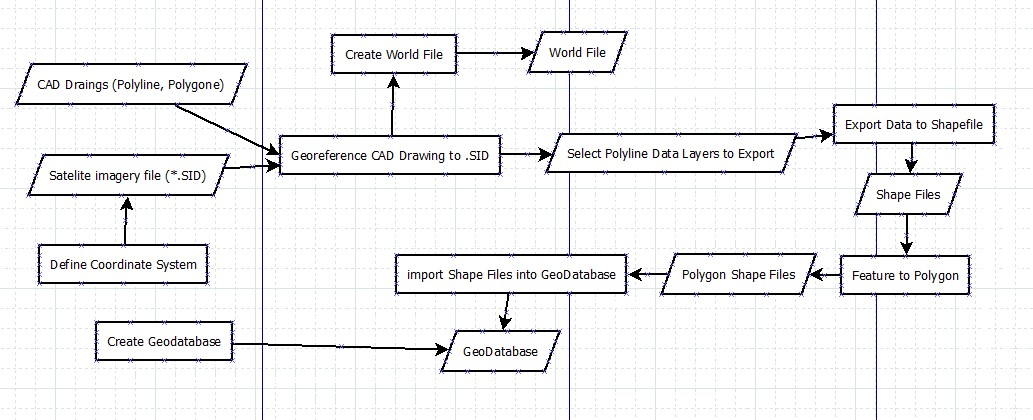
For this exercise, a copy of the CAD and imagery files were provided in a CAD Drawing format (DWG) and Satellite imagery format (.SID). The plan to solve this is to use a combination of ArcCatalog and ArcMap to create several files including the geodatabase to store the compiled files in for distribution back to the customer. I will utilize georeferencing tools within ArcMap to scale the drawings to the satellite imagery and use the tools within ArcMap such as Feature to Polygon and export data tools to create the appropriate data files in a shapefile format.
Methods
Utilizing ArcCatalog, ArcMap and georeferencing tools you will first add the CAD data file called: NCST_Masterplan05_edited.dwg and then add the file NCST20.SID imagery file to your ArcMap layers. You must define the coordinate system of the NCST20.SID file to the NAD 1983 StatePlane North Carolina FIPS 3200 (US Feet). Using the Georeferencing tools by adding control points to two known locations on opposite sides of the map you will update the display and the CAD files should now be to the correct scale with the imagery file. To create the shape files you first select the Drawing Layers tab from within the properties of the selected CAD Drawing (*.dwg). Then using Symbology to display that data as a unique value and color. Once the Layers is displayed properly use the data export tool to create your shape file for that particular feature. Using ArcCatalog you create a file geodatabase and import the shape files into that database to create the final output database called Masterplan05.gdb.
Process diagram / workflow diagram
Results
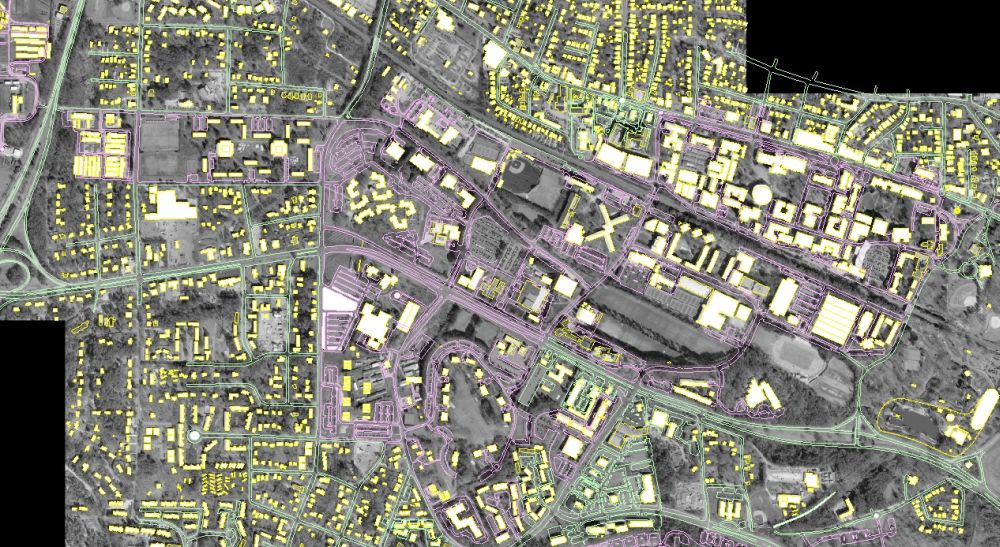
The below image is the result of the process described above in which I linked a CAD drawing
to an existing satellite image.
Application and Reflection
I think this type of application is essential if you are working as a city planner and using an engineering CAD file to create maps for various reasons. In a new data problem
Problem description
You could be using a CAD drawing of buildings in a new city development project and you are trying to provide up to date geospatial representations to a customer with current imagery based on your CAD files. Some of the files you could use would be from Google earth for example as imagery that is fairly current or imagery from remote sensing satellites. The process would be similar to what we went through in this exercise.
Data needed
In order to complete this project you would need a base image file of the area you are working on. This could easily be captured from Google earth or from satellite imagery from other sites such as:
Analysis procedures
The procedures would mirror what I have done in the above process. Utilizing ArcCatalog, ArcMap and georeferencing tools you will first add the CAD data file and imagery files to your ArcMap layers. Define the coordinate system of the raster data file to the correct environmental settings.
Using the Georeferencing tools by adding control points to two known locations on opposite sides of the map you will update the display and the CAD files should now be to the correct scale with the imagery file.
To create the shape files you select the Drawing Layers tab from within the properties of the selected CAD Drawing (*.dwg). Then using Symbology to display that data as a unique value and color. Once the Layers is displayed properly use the data export tool to create your shape file for that particular feature. Using ArcCatalog you create a file geodatabase and import the files necessary for delivery to your customer.