Elementary Customization for ArcMap
Problem
Create two customized tool bars incorporating a downloaded add in to conduct geometry calculations to determine the x and y center of the police districts and display those results on the map. As well as incorporate a custom context menu within the feature layer.
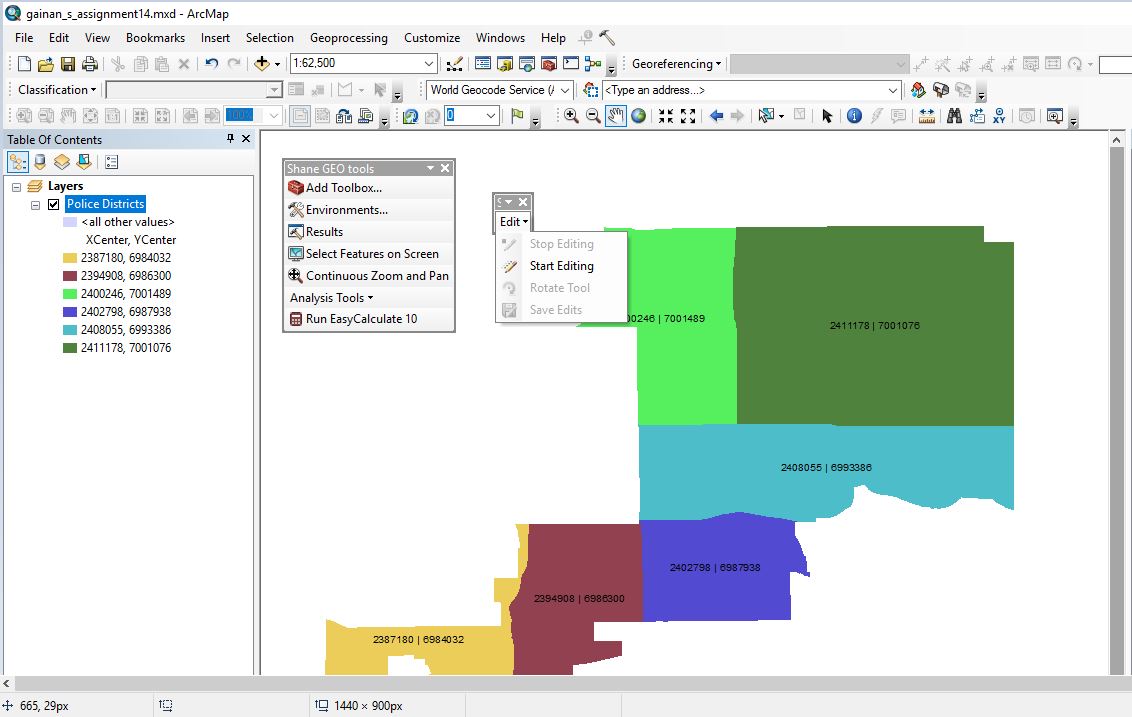
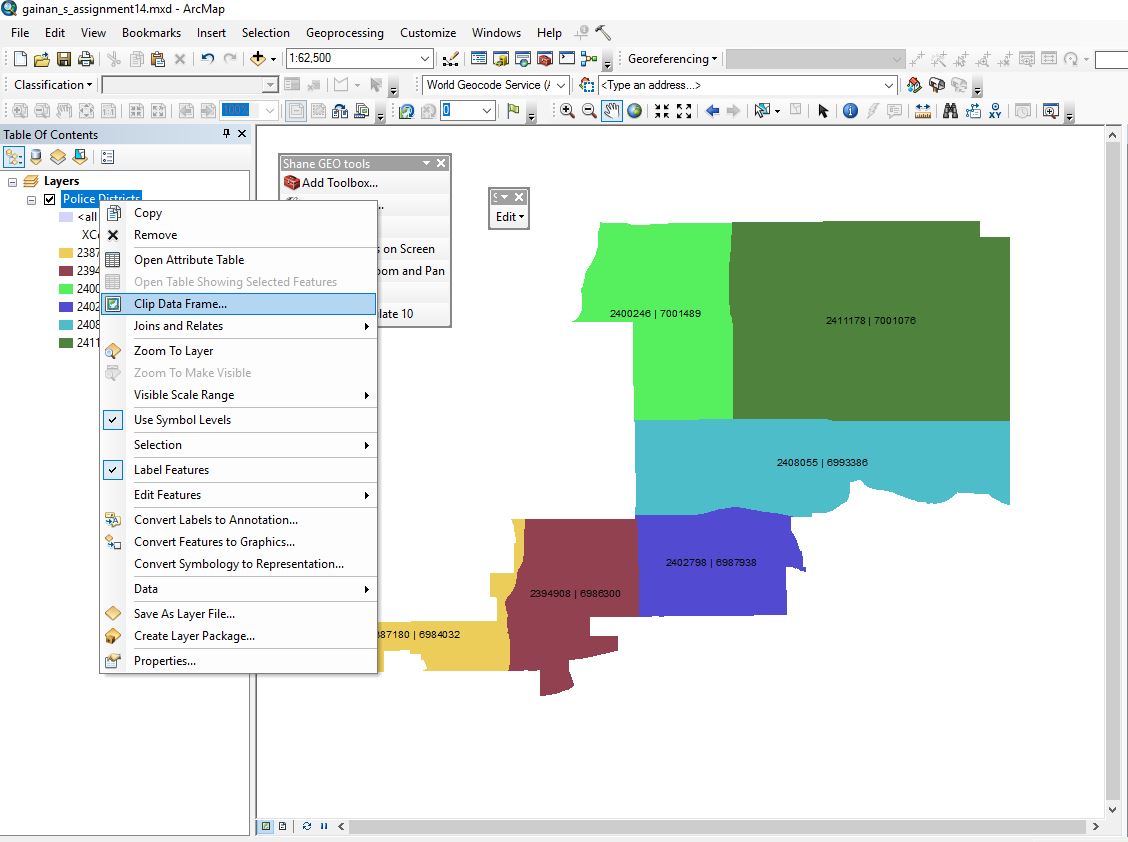
For the custom context menu I used a clip data frame as a demonstration of how I could incorporate the tools in various ways as either a context menu or in the tool bars. The first of two custom tool bars called “Shane GEO Tools” incorporates several tools. These are Add Toolbox – to easily create a new tool box for model development, Environments – to easily set the workspace, Results – to quickly show the results of models, Select Features on Screen and Continuous Zoom and Pan for easy data visibility and access.
I have also added two Analysis tools to clip and buffer for simplicity and the Run Easy Calculate 10 add in for use of calculating geometry and such. The second of the custom tool bars is called “Shane Edit Tools” in this menu I have a drop down menu to select several different edit functions including; Start Editing, Stop Editing, Save Edits, and a rotate tool to demonstrate the use of editing tools.
Analysis procedures
Strategies
In the process of this development I did not use much analytics as I focused on customization of the work environment. After conducting several tutorial exercises I incorporated the lessons learned into the customization of my map by selecting the Customize menu and adding two new toolbars and then inserting the custom commands to those tool bars.
Methods
The methods I used included downloading the Run EasyCalculate 10 tool from the following website: EasyCalculate 10 Website. I then installed it following the detailed instructions from the add-in page. The remainder of the customization was handled within ArcMap utilizing the Customize tools, first after opening the customize window selecting toolbars and then new and creating two new tool bars and naming them accordingly. I then went to the Commands menu tab and selected the tools as desired and also added the “New Menu Item” to allow for a dropdown selection menu with the toolbars I created. To incorporate the custom context menu by continuing in the Customize mode under the Toolbars menu and selected “Context Menus’ by checking the toolbar. Since I was working with feature layers I opened the Feature Layer Context Menu and dragged the tool from commands into the appropriate location to create the context menu tool.
Process diagram / workflow diagram
For the process diagram I think it can be best described in a step through vs. a an image or process diagrams as you are using a specific function not necessarily something built in modal builder:
Customize => Customize Mode => Toolbars => New (Create new toolbars) => Commands – select the commands and drag and drop them into your newly created toolbar.
Customize => Customize Mode => Toolbars => Context Menus => Scroll to Feature Layer Context Menu = > Commands and drag and drop into the context menu you have chosen.
Results
Application and Reflection
These steps can easily be used in many applications,
Problem description
If I was a city planner and needed to conduct a task for each county in my district, i.e. use the calculate geometry to find the xcenter and ycenter you would download the EasyCalculate add in and develop a custom toolbar to incorporate that into your daily routing, maybe you are trying to draw something, this tool can be used to draw buffers, or other editing tools as necessary built into the calculator. I am certain there are many tools out there to add-in to your specific use and specific needs across many fields of study and work.
Data needed
Data needed to customize your toolbar in ArcMap is essentially identifying the processes that you will be doing on a regular bases or mulitiple times.
Analysis procedures
In order to customize your menus, you will follow the steps below
Customize => Customize Mode => Toolbars => New (Create new toolbars) => Commands – select the commands and drag and drop them into your newly created toolbar.
Customize => Customize Mode => Toolbars => Context Menus => Scroll to Feature Layer Context Menu = > Commands and drag and drop into the context menu you have chosen.